
Quickstart
Summary
To start your first conversation in LightVela, sign in and activate a plan, wait until your Bot is ready, then open Daily → Chat in My Agent and send a message. No messaging channel is required for Web Chat, and available plan model credits let you begin without adding your own API key. If you also want to use the same Bot in WeChat, follow the QR-code steps later on this page.
This tutorial starts with Web Chat, then shows how to connect WeChat if needed. Allow extra time for plan checkout and Agent provisioning.
This page covers
-
Signing in to LightVela
-
Activating a Launch option and opening your Hermes instance
-
Sending your first message in Web Chat
-
Connecting WeChat if needed
-
Sending a message in WeChat and receiving a reply
1. Sign in to LightVela
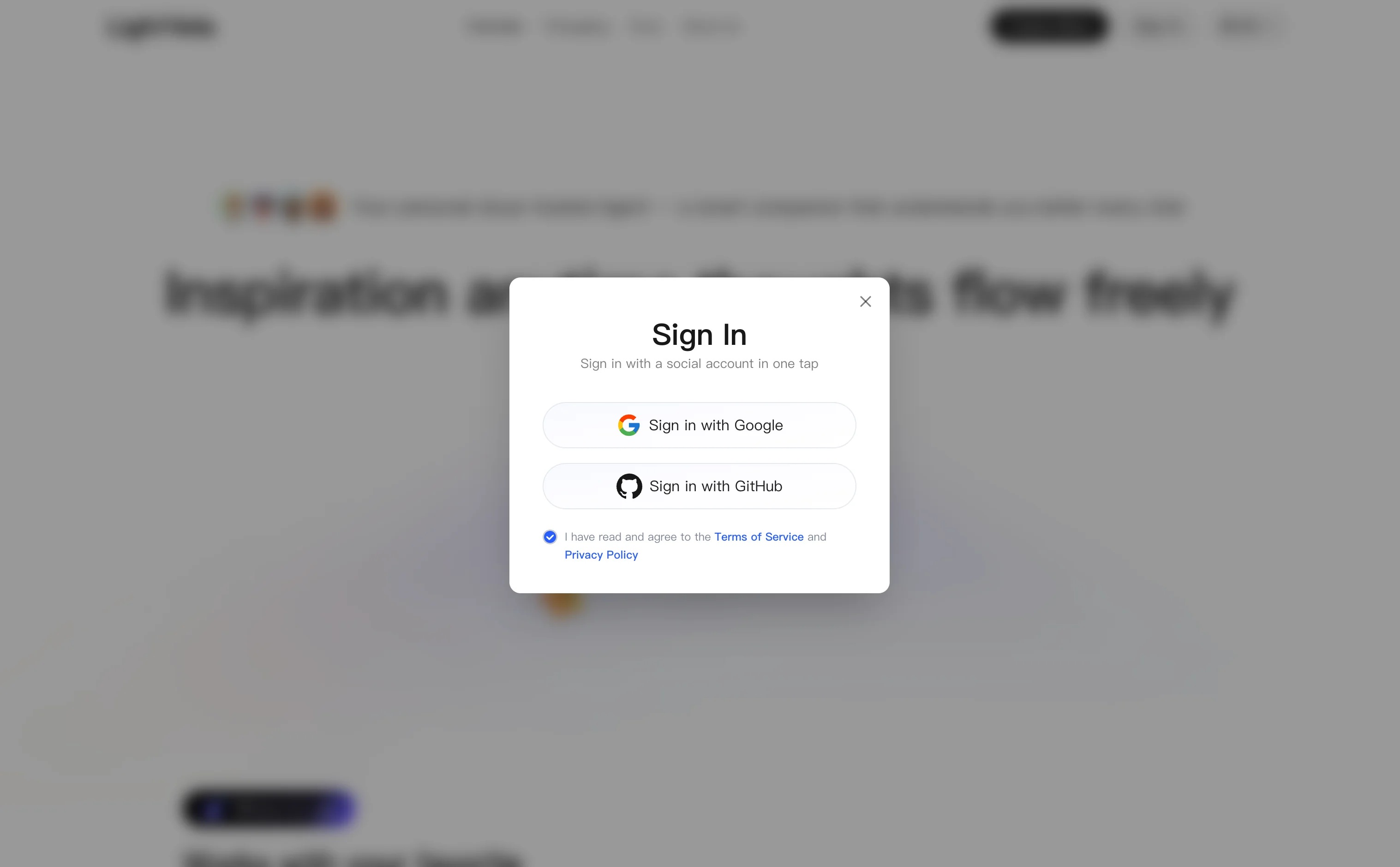
Visit lightvela.ai and click "Log in" in the upper-right corner. In the login dialog, choose Google or GitHub, accept the agreements, and complete authorization.
2. Activate the Launch plan
Open the Subscribe page, choose the 100-credit Launch option in the Launch series, and follow the plan card through checkout. Check the displayed price and first-order offer before confirming.
3. Open your Hermes Agent
After plan activation, open the Agent console. LightVela provisions the cloud instance for your plan. If the console asks you to create the Agent, follow that on-screen step and wait until its status is Running. The sidebar then provides Channels, Models, Skills, and Scheduled Tasks. You can use plan model credits without entering your own API key.
4. Start a conversation in Web Chat
Once the Bot is ready, open Daily → Chat in the sidebar, choose New conversation, and send “Hi.” A reply completes your first Web Chat; see Chat for conversation controls.
5. Connect WeChat if needed
Open Channels in the Agent sidebar. On the WeChat card, select + Connect and follow the QR-code instructions. Scan the code with WeChat on your phone and finish authorization there. Confirm that WeChat appears as connected in the console before sending a message. See Configure Channel - WeChat if the code expires or connection fails.
6. Send a message in WeChat
Find the added bot account in WeChat and send a test message:
Hi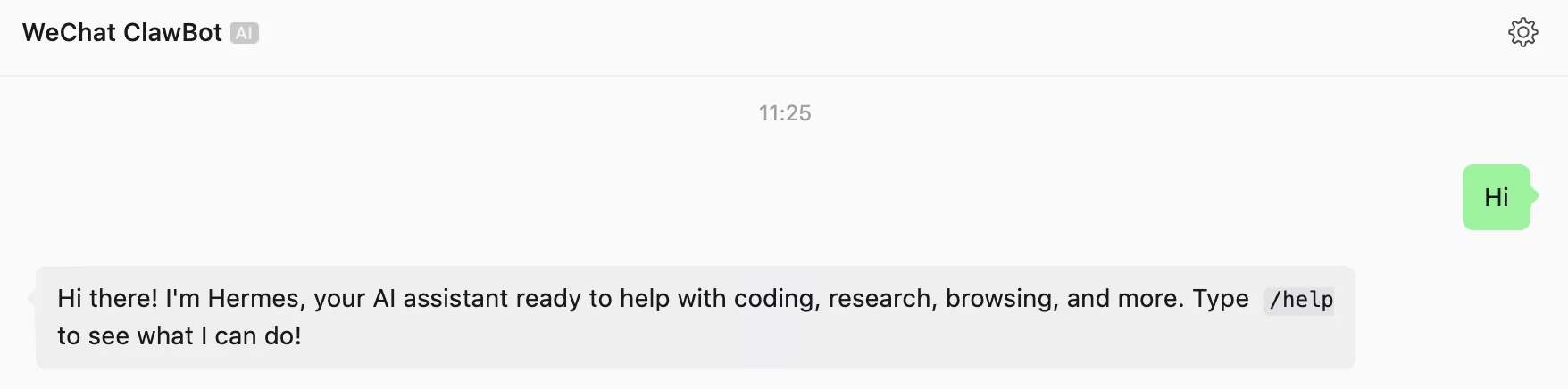
You should receive a reply from Hermes within a few seconds. Hermes can now chat through WeChat.
Advanced: configure your own model (optional)
If you need a specific provider, open Models in the Agent sidebar, choose the provider and model, add its API key, and set a primary model. See Configure Models.
FAQ
| Issue | What to check | Next step |
|---|---|---|
| The Launch option cannot be activated | Current availability, eligibility, or checkout status | Recheck the Subscribe page and the final checkout message; avoid repeating a completed order. |
| Agent setup takes longer than expected | Whether the console still shows provisioning or an error | Refresh the Agent overview once; if the state does not change, use Diagnostics or contact support. |
| The WeChat QR code expires | Whether authorization completed on the phone | Reopen Channels and start a new connection attempt. |
| A message gets no reply | Channel connection, Agent status, and model credits | Check Channels and Diagnostics. If credits are exhausted, review credit options. |
Next steps
-
Core Concepts — Understand the five core concepts: Hermes Agent, Bots, models, channels, and skills
-
Configuration Overview — Overall console structure
-
Configure Skills — Install Skills from Skills.sh or ClawHub
Last updated 2026-09-27