
Souls
Summary
Personality defines the stable role, voice, priorities, and behavioral boundaries for one Hermes Agent.
Choose a Soul from the Agent's Personality settings, review its description, and inject it to update the Agent's SOUL.md.
Only one Soul is active for an Agent at a time, and you should start a new conversation after changing it so the updated rules are loaded.
This page covers
- What Personality and Souls control
- Choosing and injecting a Soul
- Verifying that the new personality is active
- Keeping personality, user preferences, memory, and skills separate
- Common limits and troubleshooting steps
What Personality controls
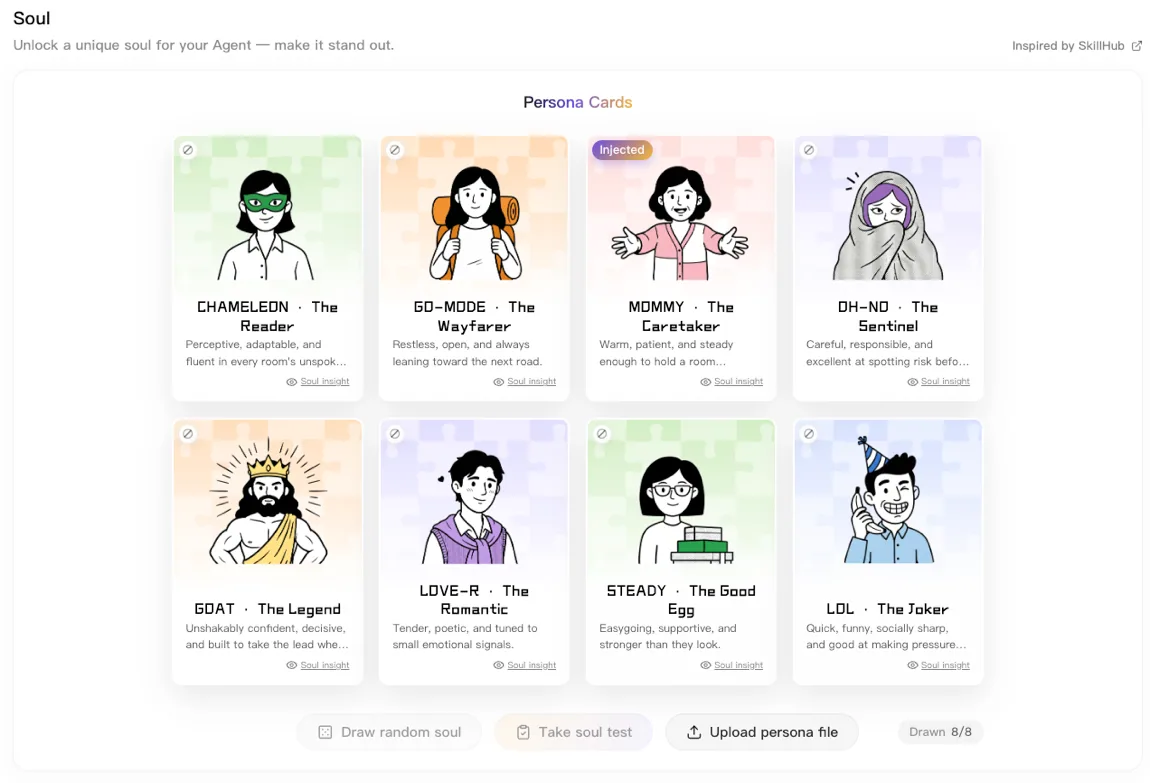
A Soul is the selected persona that LightVela writes to the Agent's SOUL.md.
It defines who the Agent is, how it normally communicates, what it prioritizes, and which boundaries it should respect.
Use Personality for stable instructions such as “lead with the conclusion,” “state uncertainty clearly,” or “ask before taking an external action.” Do not use it as a place for changing project facts, one-off requests, or a general-purpose cloud file editor.
Personality belongs to the Agent, not to a single conversation channel. If the same Agent is connected to Telegram and WhatsApp, its new conversations on both channels use the same active Soul.
Before you start
- Open the Hermes Agent whose personality you want to configure.
- Make sure the Agent has a model and at least one usable conversation channel so you can verify the result.
- Decide the role, audience, voice, priorities, and actions that should always require confirmation.
A short brief is usually enough. For example: “A concise research assistant that gives the conclusion before evidence, names uncertainty, and asks before sending anything outside the conversation.”
Configure a Soul
Open Personality
- Open Agents in the LightVela console.
- Select the Hermes Agent you want to configure.
- Open the Personality section in that Agent's settings.
The setting applies only to the selected Agent. Switch to another Agent before configuring it if you want a different role or voice elsewhere.
Choose a Soul
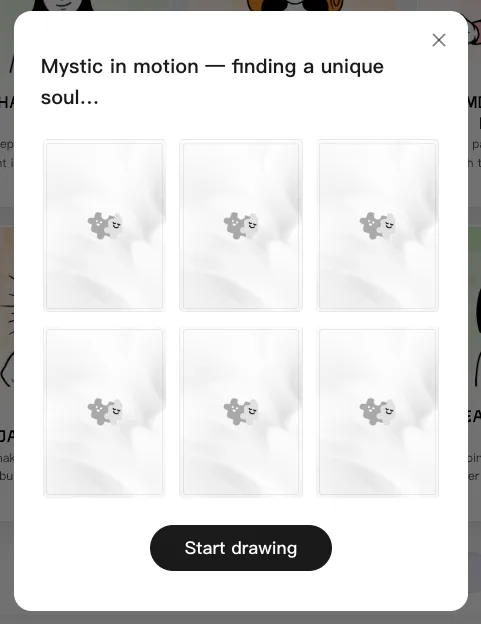
Use Draw random soul to explore available persona styles. Use Soul personality test when you want a recommendation based on your communication and behavior preferences.
Review the role, voice, behavior description, and boundaries on each Soul card before making a choice. Choose a Soul that matches the brief you prepared rather than selecting only by its name or tone.
Inject the Soul
- Select the Soul you want to use.
- Select Inject soul.
- Confirm the injection result in the Personality section.
- Return to a connected conversation channel and send
/new.
When injection succeeds, LightVela writes the selected Soul to the current Agent's SOUL.md and keeps a backup before replacing an existing personality.
An existing conversation can still retain the earlier personality snapshot, so /new starts a conversation that reads the updated Soul.
Upload your own Soul
Use this option when you already have a Markdown Soul that you want to apply instead of choosing a recommended card.
- Select the target Hermes Agent in the LightVela console.
- In Personality, select Upload personality file.
- Choose the Markdown file that contains your Soul.
- Review or edit its contents, then select Inject.
- If the Agent already has a Soul, confirm that you want to replace it.
- Return to a connected conversation channel and send
/new.
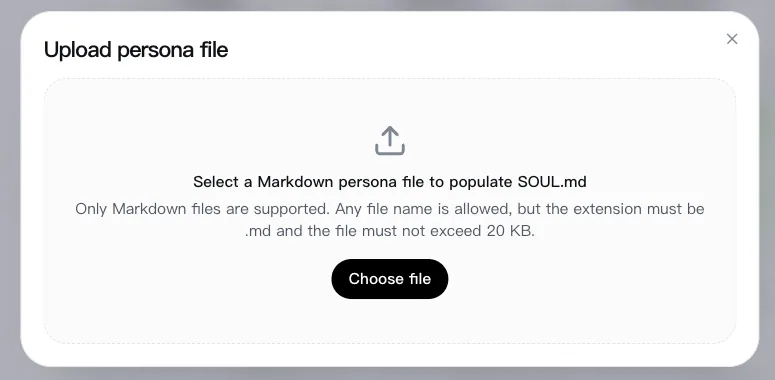
The file name does not need to be soul.md, but it must use the .md extension, be UTF-8 encoded, and be no larger than 20 KB.
LightVela shows the file contents before injection so you can make final edits.
When you replace an existing Soul, LightVela backs it up before writing the uploaded content to the selected Agent's SOUL.md.
Uploading is available only when an Agent is selected.
If you need a downloadable copy of a recommended Soul because no Agent is selected or the Agent sandbox cannot be written, use the soul.md file only as a local fallback.
Downloading that fallback does not update an Agent by itself.
Keep each type of context in the right place
| Store it in | Use it for | Example |
|---|---|---|
Personality and SOUL.md | Stable role, voice, priorities, and behavioral boundaries | “State uncertainty explicitly and ask before sending external messages.” |
| User Profile | The user's identity, location, language, and communication preferences | “Use English by default and show deadlines first.” |
| Memory | Changing facts, decisions, and long-term project context | “The current project launch is on Friday.” |
| Skills | Reusable capabilities and procedures | Web research, file organization, or daily-report workflows |
Use Memory Management to review memory and user-profile capacity. Use Configure Skills when the Agent needs a new capability rather than a new personality rule. For a deeper explanation of these boundaries, see Where Hermes Agent's Personality Comes From.
Verify that the Soul is active
After sending /new, test the Agent with a few requests that reveal its configured behavior.
What is your current role, main job, and default voice?How do you respond when you are uncertain about a fact?If I ask you to send a message to an external service, what do you do first?The new Soul is active when the Agent consistently follows the intended role, voice, and boundaries in a new conversation. If you need a channel-specific walkthrough, see How to Define an IM Agent's Role, Personality, and Voice with SOUL.md.
Troubleshoot common issues
| Issue | Likely cause | What to do |
|---|---|---|
| Replies still use the previous tone | The conversation started before the Soul changed | Send /new, then test the behavior again in the new conversation. |
| The selected Soul does not fit the Agent's real work | The Soul card was chosen by style rather than role and boundaries | Return to Personality, review the card details, and inject a Soul that matches the Agent brief. |
| The Agent forgets a project fact | A changing fact was placed in Personality instead of Memory | Keep stable rules in SOUL.md and ask Hermes to remember the changing fact. |
| The Agent cannot perform a needed task | Personality defines behavior, not capabilities | Install or configure a suitable Skill after reviewing its source and permissions. |
The console downloads soul.md instead of applying it | No Agent was selected, or the Agent sandbox could not write the new configuration | Select the target running Agent and retry injection. A downloaded file does not change the Agent. Send /new only after the console confirms that injection succeeded. |
| I cannot upload my own Soul | No Agent is selected, or the file is not a valid UTF-8 Markdown file within 20 KB | Select the target Agent, then upload a .md file that meets the file requirements. |
FAQ
Can one Agent have several active Souls?
No. One Agent has one active Soul at a time. Create separate Agents when you need genuinely different roles instead of repeatedly replacing one Agent's personality.
Can I edit the cloud SOUL.md manually?
Normal use does not require direct cloud file-system operations. The Personality setting generates and injects the Soul, but it is not a general-purpose editor for arbitrary cloud files.
Can I upload an existing SOUL.md?
Yes. Use Upload personality file to choose a UTF-8 Markdown file up to 20 KB, review or edit it, and inject it into the selected Agent. If the Agent already has a Soul, LightVela asks for confirmation and keeps a backup before replacing it.
Does changing a Soul install new capabilities?
No. A Soul changes how the Agent behaves, while Skills add concrete capabilities and reusable procedures.
Does a new Soul erase memory or chat history?
No. Injecting a Soul replaces the Agent's current personality configuration. It does not remove long-term memory or existing conversation history.
Last updated 2026-08-24