
Configure Channel - WhatsApp
Summary
The WhatsApp channel connects by QR code, much like WeChat, making it a quick way to bring your Hermes Agent into WhatsApp conversations: pick WhatsApp in the console Channels section, generate the QR code, and scan it with WhatsApp on your phone to start talking. You need a phone with WhatsApp installed and a configured model (or simply the monthly model credits included with your plan). One agent can be connected to several channels at once, sharing the same persona and long-term memory.
The WhatsApp channel uses QR-code access, similar to WeChat, and is suitable for quickly connecting Hermes Agent to WhatsApp conversations.
This page covers
-
Scanning a QR code with WhatsApp on your phone to authorize access
-
Chatting with Hermes Agent in WhatsApp
Steps
1. Enter the console
Sign in to LightVela, open your Agent, and select Channels in the sidebar.
2. Select the WhatsApp channel
Find the WhatsApp card and click "+ Connect".
Within one LightVela instance, WhatsApp can be connected to only one Bot at a time. If another Bot already owns it, open that Bot from the notice and disconnect WhatsApp before connecting here.
3. Scan the QR code in WhatsApp
Use WhatsApp on your phone to scan the code shown by LightVela, then follow the prompts in WhatsApp to authorize the linked session. If the QR code expires, generate a new one from the WhatsApp card. Return to Channels and confirm that WhatsApp shows as connected.
4. Find yourself in WhatsApp
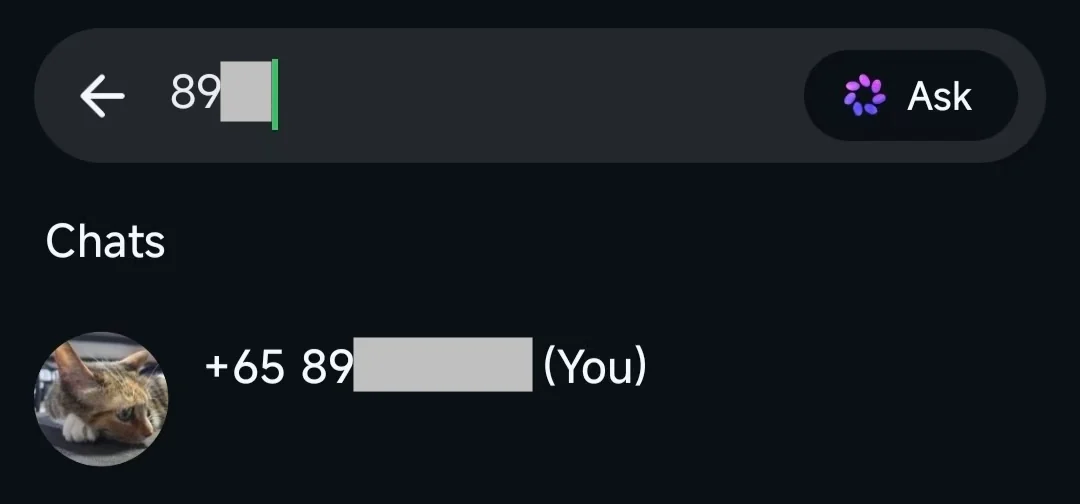
Chat with yourself — that's your bot.
Open the chat with the bot and send a test message:
HiYou should receive a Hermes Agent reply within a few seconds.
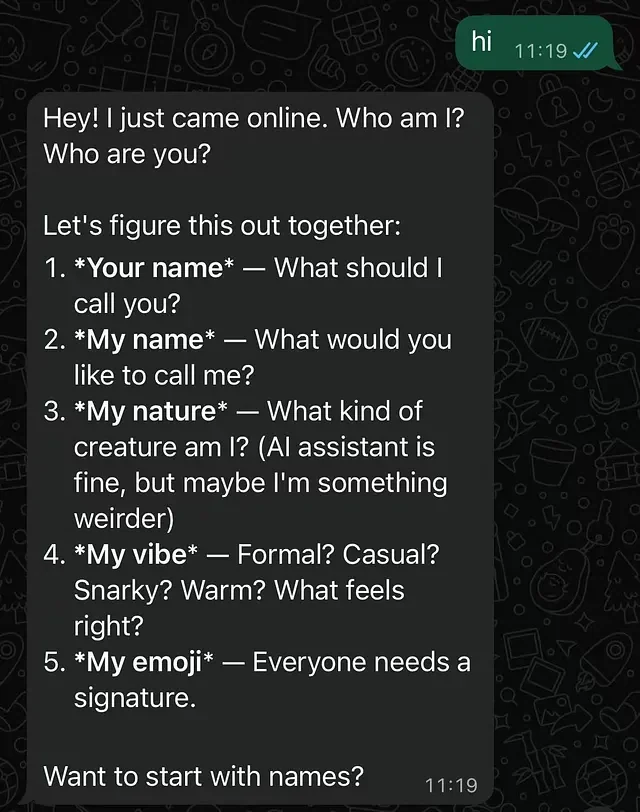
Success state
-
The "Connected channels" list in the console contains "WhatsApp"
-
The corresponding bot can be found in WhatsApp contacts
-
Hermes Agent replies after you send a message
Supported message types
After access succeeds, the WhatsApp bot can receive and reply to basic text messages and supports more message types as follows:
| Message type supported by WhatsApp bot | Supported |
|---|---|
| Receive text messages | ✅ Supported |
| Receive images and videos | ✅ Supported |
| Receive files | ✅ Supported |
| Reply with text messages | ✅ Supported |
| Reply with images and videos | ✅ Supported |
| Reply with files | ✅ Supported |
| Proactively send messages (such as scheduled reminders) | ✅ Supported |
FAQ
| Issue | What to check | Next step |
|---|---|---|
| QR code does not scan or has expired | Phone connection and current QR code | Generate a new code from the WhatsApp card and follow the current WhatsApp prompts. |
| Connection does not appear | Whether authorization finished on the phone | Return to Channels, refresh once, and reconnect if it still shows disconnected. |
| No reply after a message | Agent status, connected channel, and model credits | Check Channels and Diagnostics; review credit options if needed. |
| Scheduled messages do not arrive | Channel connection and task run result | Check the task's recent run in Scheduled Tasks and its notification destination. |
| Another Bot already owns WhatsApp | WhatsApp is limited to one Bot in this instance | Disconnect it from the current Bot before connecting it to another Bot. |
Channel notes
-
Message types: Supports text, images, videos, files, voice messages, and more. See "Supported message types" above
-
Group chat support: Group chats are not currently supported; only 1-to-1 conversations are supported
-
Connection interruption: Long periods of no response may indicate authorization was revoked. Return to the console and authorize access again
Next steps
-
Configure Channel - Discord — Community operations and developer communities
-
Configure Channel - Slack — Team collaboration, workspace notifications, and channel workflows
-
Configure Channel - QQ — Bot created manually, integrated via AppID/AppSecret
-
Configure Channel - WeCom — Enterprise internal collaboration and office scenarios
-
Configure Skills — Extend Hermes Agent capabilities
Last updated 2026-08-20